FAQ
General
- Is the free trial somehow limited?
- I paid for a license, but never received the key. What happened?
- I lost my license key. Can you mail it to me again?
- I own a beaTunes 4.x license - why should I update to beaTunes 5?
- I own beaTunes 5.1.x (or earlier) and it does not work with macOS 10.15 (or later). What now?
- beaTunes claims that there is a newer version available. What now?
- My version of beaTunes is expired. What now?
- Something does not work. Where can I get support?
- What BPM is suitable for what kind of fitness workout?
- What is your refund policy?
- Do I need iTunes to run beaTunes?
- Is Apple Music for Windows supported?
Is the free trial somehow limited?
Yes. In two ways: time and functionality.
The trial version will expire after 2 weeks.
You can use the inspection feature to find issues, but you cannot apply any solutions.
Also, beaTunes will only identify up to 10 songs in each session.
All limitations are lifted once you purchased a license.
I paid for a license, but never received the key. What happened?
Our license key email probably got caught in your spam filter. So before you contact us, please make sure to check your spam/junk folder for email from either the tagtraum.com or the beatunes.com domain.
If you cannot find it in your spam folder, try our lost key form.
If the form fails, too, please contact us.
Note, that if our emails to you are filtered out by your spam filter, we have no way of communicating with you. This means that if you contacted us via email, and we answered, you might never receive our answer due to your spam filter.
I lost my license key. Can you mail it to me again?
Please use our lost key form.
If you are unable to get to your key using the form, please contact us.
I own a beaTunes 4.x license - why should I update to beaTunes 5?
I've put a lot of work into beaTunes 5 and really believe it's worth buying an upgrade.
It's prettier, easier to use, can do more, and is more accurate.
To give you an idea what's different, here's a short list:
- Dark UI theme
- Completely new key estimation
- More accurate tempo detection
- New song color scheme
- New field instrumentation (acoustic/electronic)
- Support for ITU-R BS.1770 (EBU R128, ATSC A/85, ReplayGain2)
- Ability to show key for target tempo and find matching tracks
- Playlist scan mode
- Better playlist export (M3U, CSV, WPL, relative paths)
- ID3 support for WAV and AIFF
- Beatport integration (charts, song matching, metadata correction)
- Improved inspections
- Radio mode (play similar songs)
- Smart mass editing
- Support for iTunes 12.6
Doesn't that sound like a good deal?
You can get the upgrade license here.
I own beaTunes 5.1.x (or earlier) and it does not work with macOS 10.15 (or later). What now?
Apple decided to abandon iTunes and replace it with the Music.app.
Since the new Music.app has a different application programming interface (API),
third party apps like beaTunes cannot communicate with it without modification.
The good news is, that if you own a beaTunes 5.x license you only have to update to
the latest 5.x version, which is compatible with Music.app. And yes, the update is
free.
The bad news is, that beaTunes 4.x (or earlier) will never be able to talk to Music.app.
Your only options are to downgrade your macOS back to 10.14. or to purchase a
(typically discounted)
upgrade license.
beaTunes claims that there is a newer version available. What now?
Just download the new version and replace the old one.
Your 1.w.x license will cover all updates that have the same
major version number, i.e. all 1.y.z versions. The same is true for updates
from 2.w.x to 2.y.z or 3.a.b to 3.c.d.
However, to update from 1.x to 2.x, 2.x to 3.x, or 3.x to 4.x you will have to purchase an
upgrade.
Wonder why you should update? Here's why.
My version of beaTunes is expired. What now?
If you are using a trial version:
The license key will be emailed
to you. Then start beaTunes and enter the license information
into the registration dialog. Should it not pop up automatically,
go to the Help menu and select Register...
then enter the license information.
If you are using an Early Access version, check this website for a new Early Access version or the final release.
Something does not work. Where can I get support?
If you cannot find a solution in this FAQ or the news section, please contact us here
In your support request, please state the versions of beaTunes, iTunes/Music, and macOS/Windows you are using. Furthermore, please let us know how many songs are in your library and what hardware you are running.
What BPM is suitable for what kind of fitness workout?
This highly depends on your workout and your goals. However, there are a number of sites and resources dedicated to working out to music:
- Find The Right BPM for Your Perfect Running Playlist with This Chart
- WorkoutMusic BPM Chart
- Linking BPM to Running Speed
- Understanding BPM and RPM in the Cycling World
- WebMD: Music and Your Workout
- 7 Reasons You Should Listen To Music When You Work Out
What is your refund policy?
Please see here for details.
Do I need iTunes to run beaTunes?
No. For the 64 bit versions of beaTunes 4 and later you don't need any other software - however, beaTunes works very well together with iTunes and the macOS Music app.
For beaTunes 4/4.5 for 32-bit Windows and beaTunes 3 you still need QuickTime, but not iTunes. On macOS, QuickTime is always installed as part of the operating system. On Windows, QuickTime comes with iTunes. If you don't have iTunes installed, you can download QuickTime from here.
Starting with beaTunes 4.6, QuickTime is no longer required at all.
Note that the Apple Music for Windows is not supported, because Apple decided not to implement an application programming interface (API).
Is Apple Music for Windows supported?
Unfortunately, Apple decided not to implement an application programming interface (API) for Apple Music for Windows. This means that beaTunes cannot access your Apple Music library or playlists programmatically. If you want to use beaTunes on Windows, you need to either use the old iTunes app, downloaded directly from Apple (not from the Windows app store), or use a folder-based library.
Using beaTunes
- How do I get started?
- How can I export BPM, key, and playlists to applications like Traktor?
- What is the 'mood' good for?
- What is the 'color' good for?
- What is the 'key' good for?
- How can I tag songs and why should I?
- How can I cancel the analysis of one or more songs?
- How can I cancel the analysis of all songs?
- The BPM estimated by beaTunes is twice/half as fast as the actual BPM. Why is that and how can I fix this?
- How can I make beaTunes analyze protected tracks?
- Every time I switch from another application to beaTunes, I see the blue spinning ball and beaTunes is slow. What's happening?
- How can I update to a new version of beaTunes?
- Do I have to analyze all songs in my music library in one session?
- How can I look up titles and artists for tracks that have no information associated with them?
- I have multiple iTunes libraries. How can I work with beaTunes?
- Changes aren't reflected in iTunes/Music (until a file is played)
How do I get started?
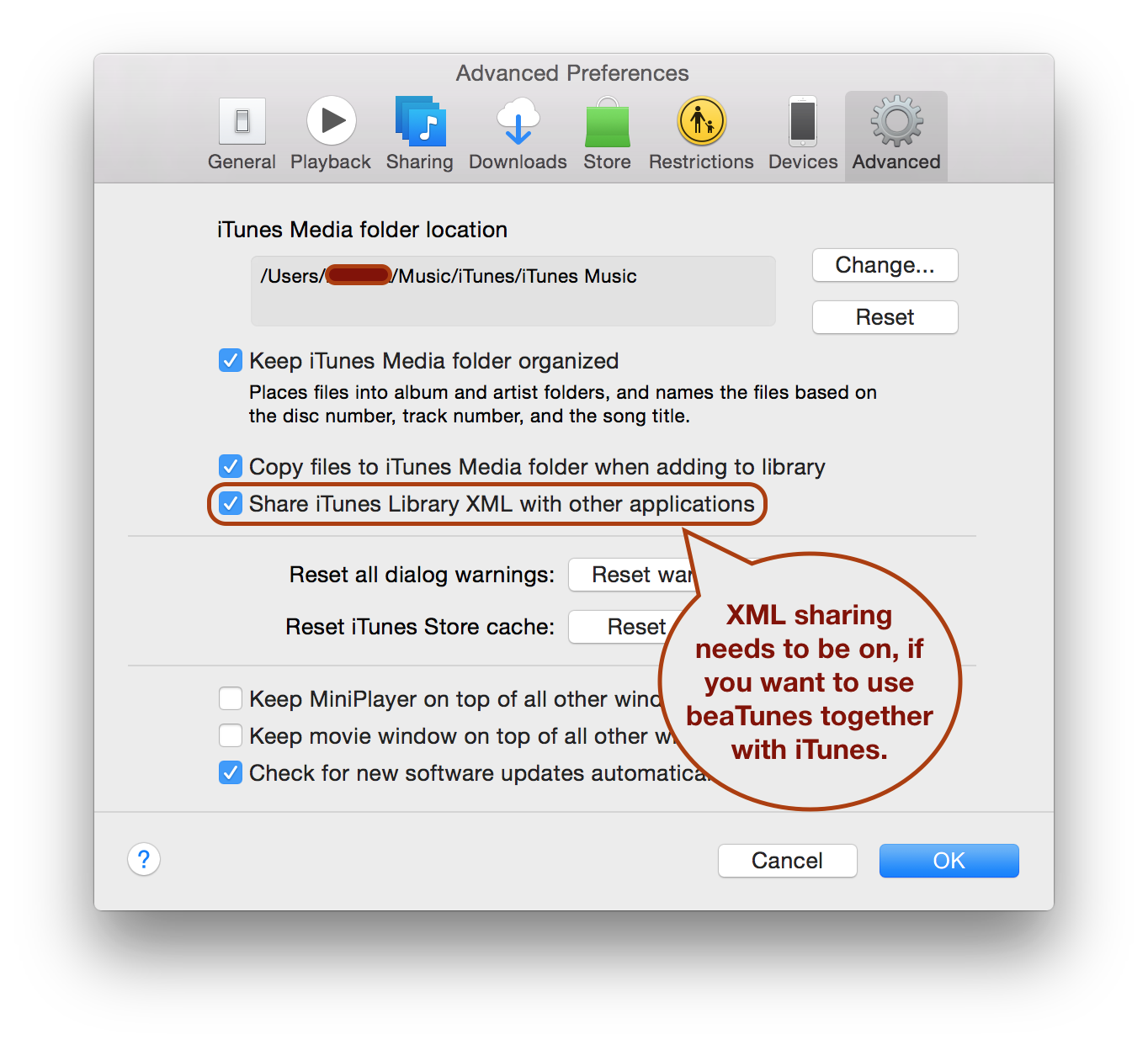
Before you start beaTunes: If you want to use beaTunes together with iTunes, make sure iTunes is sharing its media library via XML. You can turn this on in iTunes' Advanced Preferences.
Note that this is not necessary for the macOS Apple Music.app.
Also note that Apple Music for Windows is not supported.
Besides the built-in player, beaTunes offers three main functionalities:
With analysis you can calculate metadata like key and tempo directly from your audio files.Inspection allows you to find discrepancies in your files' textual metadata. E.g. an artist name spelled in multiple different ways or an album marked as compilation even though all songs are by the same artist.
Finally, playlist creation lets you to create new playlists that follow custom rules you can define in the application's preferences. Since most of these rules take advantage of tempo, color, and other values, it makes sense to first analyze and inspect, and then create playlists.
To get a quick overview on playlist creation, check out the video below. It belongs to the post 5 Ways To Create Better DJ Sets With beaTunes by DigitalDJTips.com.
Finally, you can find a whole series of articles, explaining the concept and some finer points in detail here.
How can I export BPM, key, and playlists to applications like Traktor?
beaTunes can handle two kinds of music collections:
- iTunes/Music.app-based
- Folder-based
If you are mainly using other applications than iTunes/Music for playback, it makes sense to use a folder-based collection. All computed values are immediately written to your files and can be imported from there by third party applications. To export playlists, you can right-click on the list in question, choose a format (Traktor supports M3U, but not M3U8), and export.
Depending on the kind of library and your preferences, beaTunes writes certain values like key into your files—or not. You can read more about where beaTunes stores its data in this article.
What is the 'mood' good for?
beaTunes allows you to tag your songs with a color-coded mood. Note that this is different
from the beaTunes 'color' as it is clearly defined, which color stands for which mood.
To set the mood, select one or multiple songs and open the Get Info context dialog.
In its last tab you can click into a colored square to select a mood (for more info see
here).
You can also automatically infer moods from Last.fm tags or from
AcousticBrainz data.
To do so, select the songs you want to analyze, click on the 'Analyze' button in the toolbar
and select the Estimate Mood task.
Of course you can use moods when configuring match rules, so that you can easily find songs with similar mood in your collection.
What is the 'color' good for?
The song 'color' determined by beaTunes is a measure of how a song sounds in relationship to the other songs in your library. I.e. blue songs sound more similar to each other than to red songs.
Starting with beaTunes 4, colors are computed in a standard way, so that a song's color is always the same no matter which library it is in.
beaTunes 5 has renamed the color familiar from beaTunes 4 to timbre. In its place, a new, more comprehensive color was put. It contains information about timbre as well as rhythm.
What is the 'key' good for?
Knowing the key a song is in, can help you to pick songs that match harmonically. This is in essence the basis for a DJ technique called harmonic mixing. Songs in the same key, relative, dominant or subdominant keys usually mix well, while others often sound dissonant. When creating Matchlists with beaTunes, the Matching Key rule takes exactly these relationships into account when calculating the match quality, helping you to create harmonious mixes.
Additionally to the musical key names, beaTunes displays their names in Open Key Notation, a numeric mapping of the regular key names, suitable for recognizing matching keys more quickly. Starting with beaTunes 4.0.4, you can configure in the general preferences how you want beaTunes to render/display your keys. Starting with version 4.5, you can also configure how beaTunes should embed your keys (ID3 TKEY or Open Key Notation) into the key tag. For this to work, embedding of non-iTunes/Music field has to be turned on, if you are using an iTunes/Music-based library. Furthermore, you can ask beaTunes to copy the key value to the comment field. This is done in the configuration of the key analysis task.
How can I tag songs and why should I?
beaTunes allows you to assign tags to individual songs. This does not only help to improve the match process, but can also be very convenient, when searching for a particular song or group of songs.
In order to assign a tag, just select a song and click on its
tag column (slow click). A dialog will pop up, showing an input
field for your tags and a tag cloud of already used tags. Using
the tag cloud for entering the new tags helps keeping your
library consistent.
You can also tag songs through the Get Info dialog.
Note, that you can automatically import tags from Last.fm.
How can I cancel the analysis of one or more songs?
Go to the Task Queue and select the songs that you
want to cancel the analysis of. Control-Click (Mac) or
Right-Click (Windows) and choose
Cancel Task.
How can I cancel the analysis of all songs?
Go to the Tools menu and select
Clear Task Queue.
The BPM estimated by beaTunes is twice/half as fast as the actual BPM. Why is that and how can I fix this?
Starting with version 4, beaTunes contains a special algorithm that actively tries to avoid this so-called octave error. However, the current state of the art does not allow for 100% correct results.
Should you encounter many octave errors, you might want to specify the approximate range of BPM you expect, when you start the analysis. However, sometimes this is hard - especially when you analyze hundreds of songs. Therefore, beaTunes offers several ways to correct the measured BPM.
- Select the song that has the wrong BPM. Click on the BPM column of that song. The BPM field becomes editable. Enter the correct value or swap values with the alternative value by clicking on the arrow.
- You can also select the song, Control-Click (Mac) or Right-Click (Windows) and select 'Tap Beat' from the context menu. This allows you to tap the beat and have beaTunes store the result.
- If you know that some songs are actually twice or half as fast, select the songs you want to change, then select 'Double BPM' or 'Halve BPM' from the 'Edit' menu.
How can I make beaTunes analyze protected tracks?
There is no easy way to achieve this. DRM protected tracks cannot be analyzed. The reason is obvious: If beaTunes could easily access the raw audio data for analysis, it could just as easily create an unprotected copy. Until 2009 most songs purchased from the iTunes Store were DRM protected.
All songs downloaded via Apple Music are also DRM protected.
As a DRM-free alternative to the iTunes Store you might want to check out Amazon's download store.
Every time I switch from another application to beaTunes, I see the blue spinning ball and beaTunes is slow. What's happening?
Whenever you switch from another application to beaTunes,
beaTunes synchronizes with iTunes/Music to catch up on external changes
to the music library. With large libraries, this can be a little
annoying. Since in many cases there are either no
or only insignificant changes, you can turn this feature off.
Just go to Preferences > General and uncheck
Synchronize with iTunes/Music on window activation.
You can still synchronize with iTunes/Music manually by selecting
File > Synchronize or Shift-Command-Y
on Mac and Shift-Control-Y on Windows.
How can I update to a new version of beaTunes?
On macOS, just replace your old beaTunes app. If macOS asks you whether you want to replace the old application, say yes.
On Windows, first stop beaTunes, then simply run the installer—old versions will be removed.
Do I have to analyze all songs in my music library in one session?
No. You can shut down beaTunes at any time and resume analysis simply by starting beaTunes again.
How can I look up titles and artists for tracks that have no information associated with them?
If you ripped a lot of songs while you were offline or simply before
CDDB was used, your tracks may have meaningless titles like 01-Track.mp3.
beaTunes lets you fix this.
Analyze these songs with the Import metadata from online resources
option (Internet connection required). Choose carefully how the new data should be imported,
to make sure that you don't accidentally loose any of your existing data.
If you don't trust the automatic process you can choose Don't import song info, just
look up ID. After completion of the analysis, open the Get Info dialog
on one of the tracks. beaTunes will now try to obtain information about the song and underline
any existing data that it thinks is wrong. Depending on your OS, Right- or Control-click on the
underlined item and beaTunes will suggest one or more alternatives.
To find out even more about a particular song using MusicBrainz,
Amazon or Discogs, you may
also want to use the Open in... feature. Right- or Control-Click on a song and choose
Open in.... Then select one of the options and a corresponding page will open in your
browser.
Please note that MusicBrainz is a non-profit effort. It depends on individuals like yourself to provide high quality data. Consider contributing by volunteering as an editor.
I have multiple iTunes libraries. How can I work with beaTunes?
Typically beaTunes auto-detects the library you are currently working with. It will prompt you
to configure the library you are using, should it not find the right iTunes (Music)
Library.xml file. To do so, open the beaTunes
Preferences dialog and go to the General tab. There you find
a dropdown box with the currently configured libraries and also a [+] button that lets you
setup a new library.
If you are using the Apple Music.app, beaTunes will always work with the current library.
Changes aren't reflected in iTunes/Music (until a file is played)
beaTunes supports two kinds of libraries:
- Folder-based
- iTunes/Music.app-based
To check what kind of library you have, open the beaTunes preferences, select the General tab and check out the entry under the heading Music Library. If it starts with "FileSystem", you have a folder-based library.
To create an iTunes-based library in beaTunes 4 or later, open the File menu and choose New Library.
You can choose between folder and iTunes. Choose iTunes. Then, in
the file open dialog, select your iTunes Library.xml file. Based on the
library file, beaTunes will find your music files, wherever they are.
If you are using the Music.app you will not have to choose an XML file.
Technical
- I encountered a Java OutOfMemoryError. What now?
- How can I add my own analysis code? Is there a plugin API?
- Analysis takes a long time. Is this because beaTunes is written in Java?
I encountered a Java OutOfMemoryError. What now?
You can find information about this issue here.
How can I add my own analysis code? Is there a plugin API?
beaTunes is written in a way that makes it possible to easily add custom components and inspections. Some more info can be found in the beaTunes plugin API section. Please contact me via the support forum with any questions you might have.
Analysis takes a long time. Is this because beaTunes is written in Java?
If beaTunes was written in assembler, analysis would probably be faster.
Chances are, that beaTunes would also crash more often. Contrary to
common perception, the speed of Java has caught up quite a bit compared to
early versions from more than fifteen years ago. Pretty much every recent benchmark
that compares Java with C or C++ has concluded that Java is typically
a little slower than C and in many cases
almost as
fast as C++.
This means that nowadays mainly the code quality determines whether a C implementation
is faster than a Java implementation.
So the answer is no. In fact the first step of the analysis is the
decoding of the compressed audio file (mp3, aac, etc) into raw audio
data. During this step beaTunes uses
the mostly native SampledSP libraries.
Additionally, there are some other analysis steps like FFT that are done
natively to take advantage of special hardware capabilities.
While the CPU has certainly some impact on processing speeds, for modern computers I/O speed is more likely the bottleneck for beaTunes' analysis. Tasks like automatic segmentation or ReplayGain require beaTunes to read the whole file, usually a couple of megabytes. If this happens over a network from a slow NAS, it is going to take a lot longer than if the file is stored on a local SSD. Even an external USB drive can be fairly slow. If you must use USB, make sure it's USB3.